Welcome to Importify! This guide walks you through setting up Importify as a supplier, connecting your WordPress store, syncing products, automating product distribution, and exporting your catalog to B2B merchants and the Importify Marketplace.
Follow the steps below to get your supplier account up and running.
1. Create Your Importify Supplier Account
Before connecting your WordPress store, you need to create an Importify account and obtain your Account API Key.
- Visit the Importify registration page.
- Select Supplier as your account type and complete the registration form with your account details.
- Verify your email address by following the instructions sent to your inbox. Your account must be verified before you can activate it.
- Once registered, visit your Importify account dashboard.
- Copy your Account API Key. You will need this key to connect your WordPress store to Importify.
Important: Make sure you enter the correct Shop URL when registering your supplier account. Your Shop URL must match your WordPress store's URL; otherwise, Importify may not be able to connect to your store.
2. Install the Importify Supplier Plugin on WordPress
Next, install the Importify Supplier plugin on your WordPress website.
- Log in to your WordPress admin dashboard.
- Navigate to Plugins > Add New Plugin.
- Search for Importify Supplier.
- Click Install Now, then click Activate once the installation is complete.
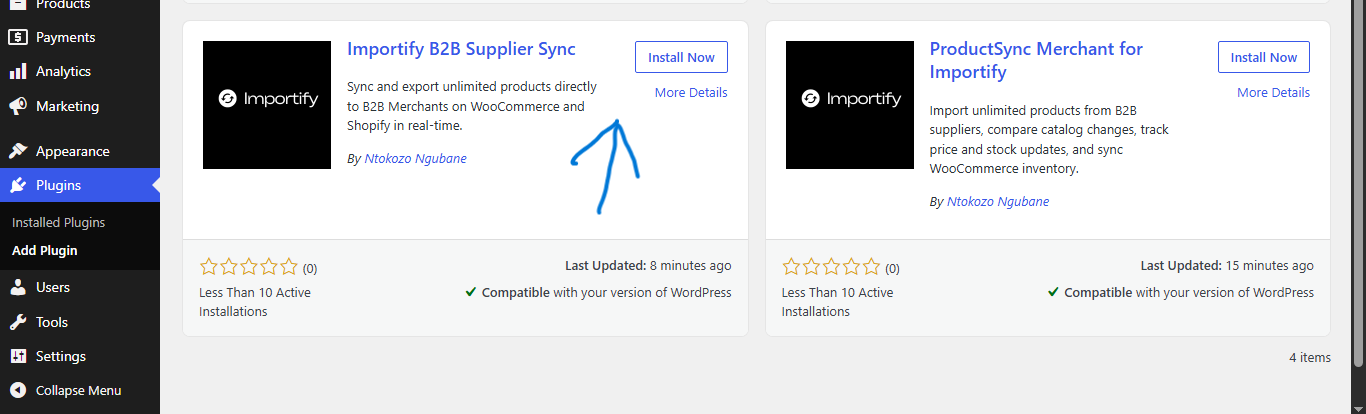
Alternatively, you can install the plugin directly from the official WordPress plugin directory:
Download Importify Supplier from WordPress.org
Once the plugin is activated, open the Importify Supplier plugin in your WordPress admin dashboard and navigate to its settings page to connect your store.
3. Connect Importify to Your WordPress Store
Now that the plugin is installed, connect your WordPress store to your Importify supplier account using your Account API Key.
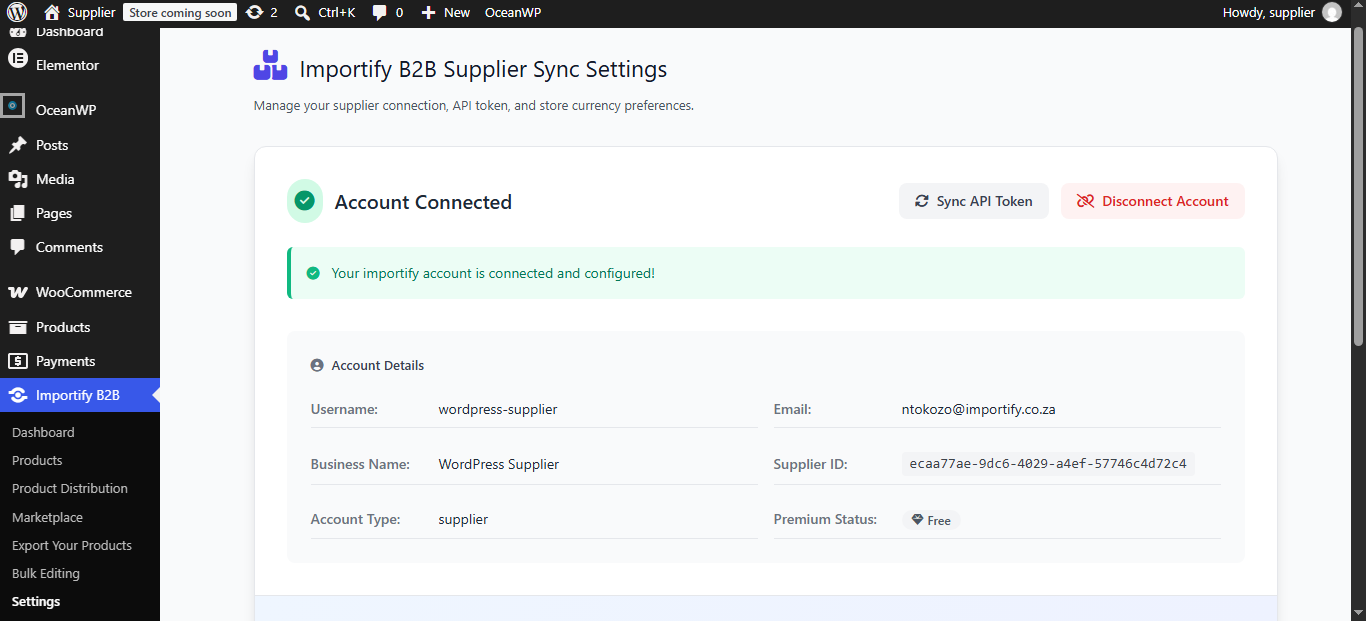
- In your WordPress admin dashboard, open the Importify Supplier plugin and navigate to Settings.
- Open your Importify account dashboard and copy your Account API Key if you have not already done so.
- Paste the Account API Key into the designated field in the plugin settings.
- Click Save Settings to connect your store to Importify.
- After saving your settings, select your store's currency from the currency selector that appears.
Once the connection is established and your currency is configured, you can begin syncing your products.
4. Sync and Export Your Products
Once your account is verified, the plugin is installed, and your store is connected, you can start syncing products for distribution to B2B merchants and the Importify Marketplace.
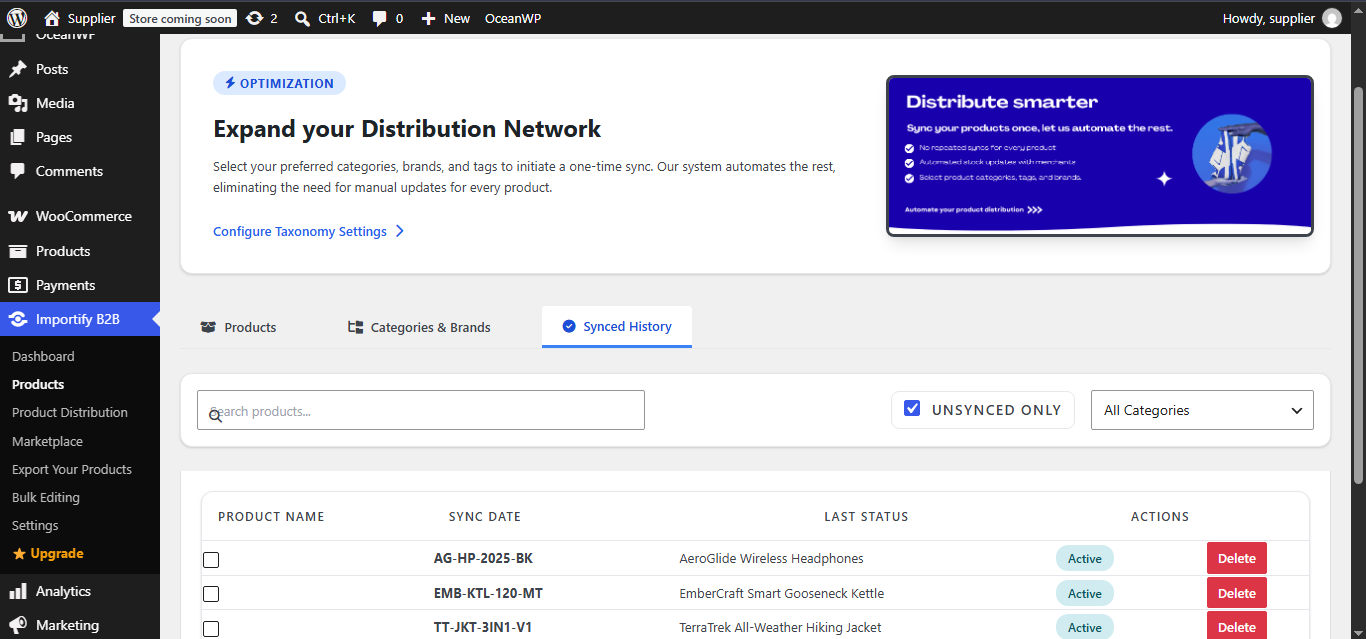
The Importify Supplier plugin allows you to sync individual products or select products by category, tag, or brand. You can also review previously synced products and manage your existing product selections.
4.1. Sync Individual Products
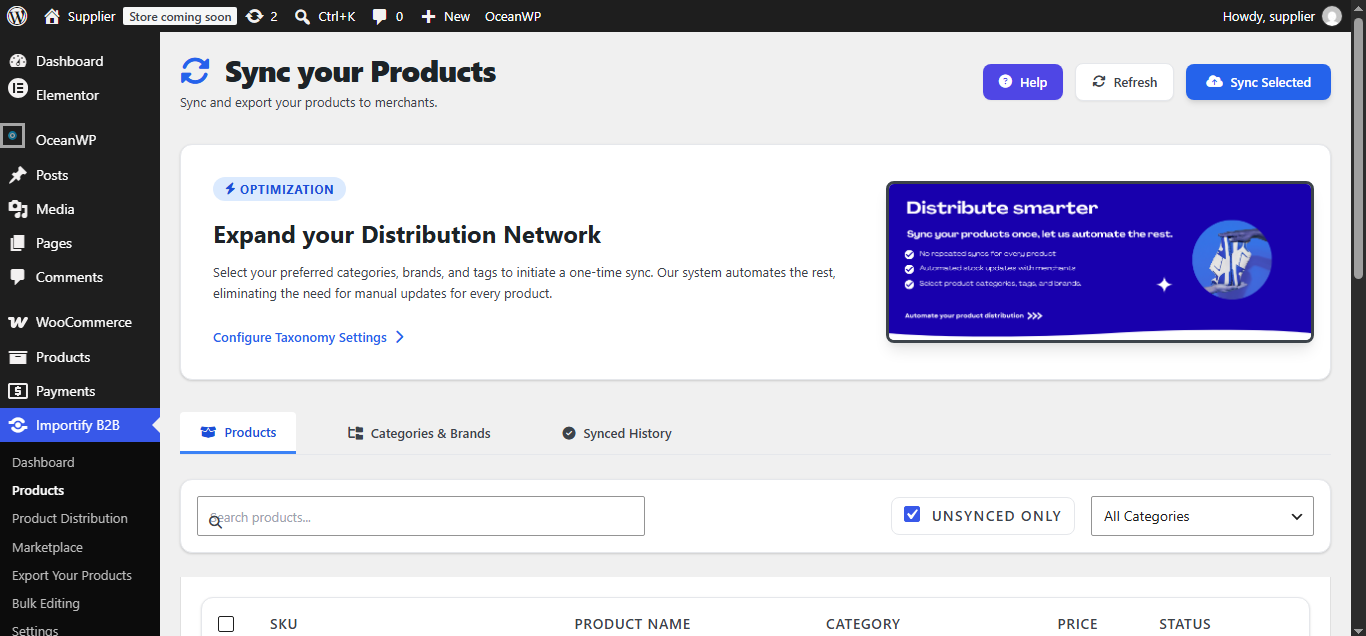
Navigate to the Products page in the Importify Supplier plugin in your WordPress admin dashboard.
From this tab, you can browse your products and select individual products for syncing. Select the products you want to make available for export, then use the available sync action to proceed.
4.2. Sync Products by Categories, Tags, and Brands
If you want to sync multiple products at once, open the Categories & Brands tab within the product syncing area.
Select the product categories, tags, or brands you want to include, then use the available sync action. This allows you to sync groups of related products instead of selecting each product individually.

4.3. View Previously Synced Products
Open the Imported Products tab to view products you have previously synced through the plugin.
From this section, you can review your synced products and remove products that you no longer want to make available, using the available management options.
5. Enable Automatic Product Distribution
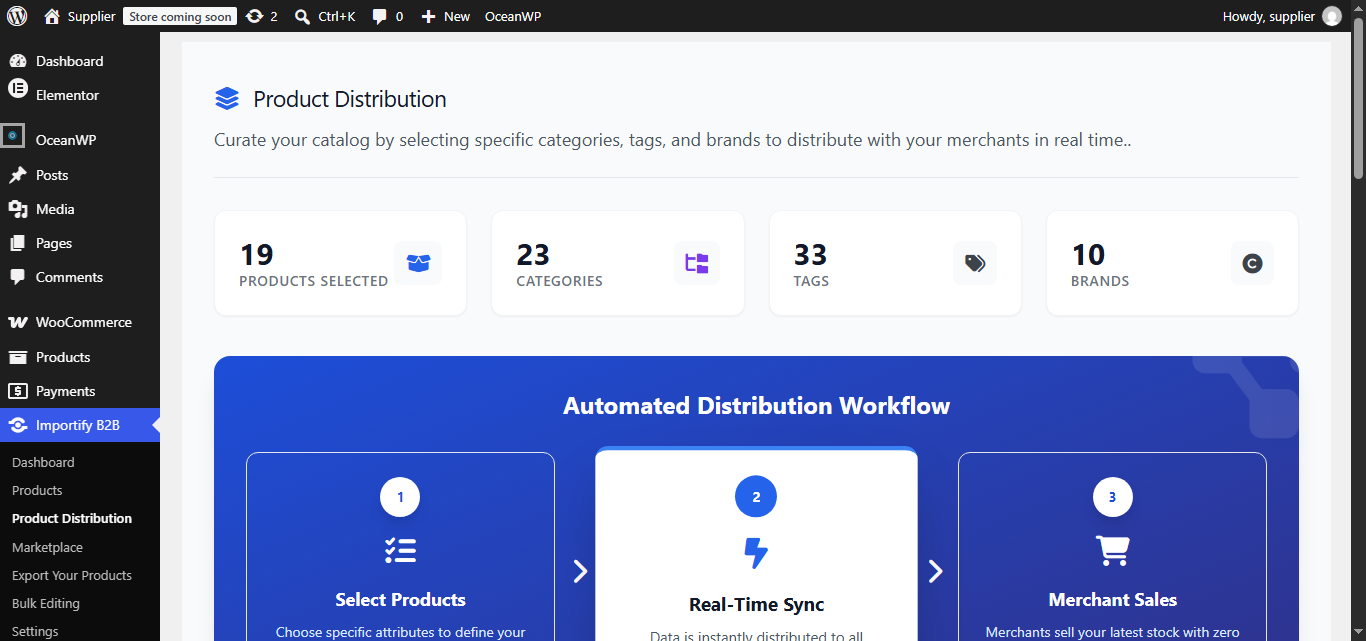
Product Distribution helps you automate product syncing, reducing the need to manually sync every product whenever your catalog changes.
- Navigate to the Product Distribution page in the Importify Supplier plugin in your WordPress admin dashboard.
- Select the product categories, tags, and brands you want to distribute.
- Configure and enable Product Distribution using the available options.
Once configured, Importify can automatically keep distributed product information up to date, helping merchants access current catalog information, including stock availability and product changes.
When you add new products or update the stock or prices of products that merchants have imported, Importify can distribute those changes automatically, helping keep merchant catalogs up to date.
6. Enable the Importify Marketplace
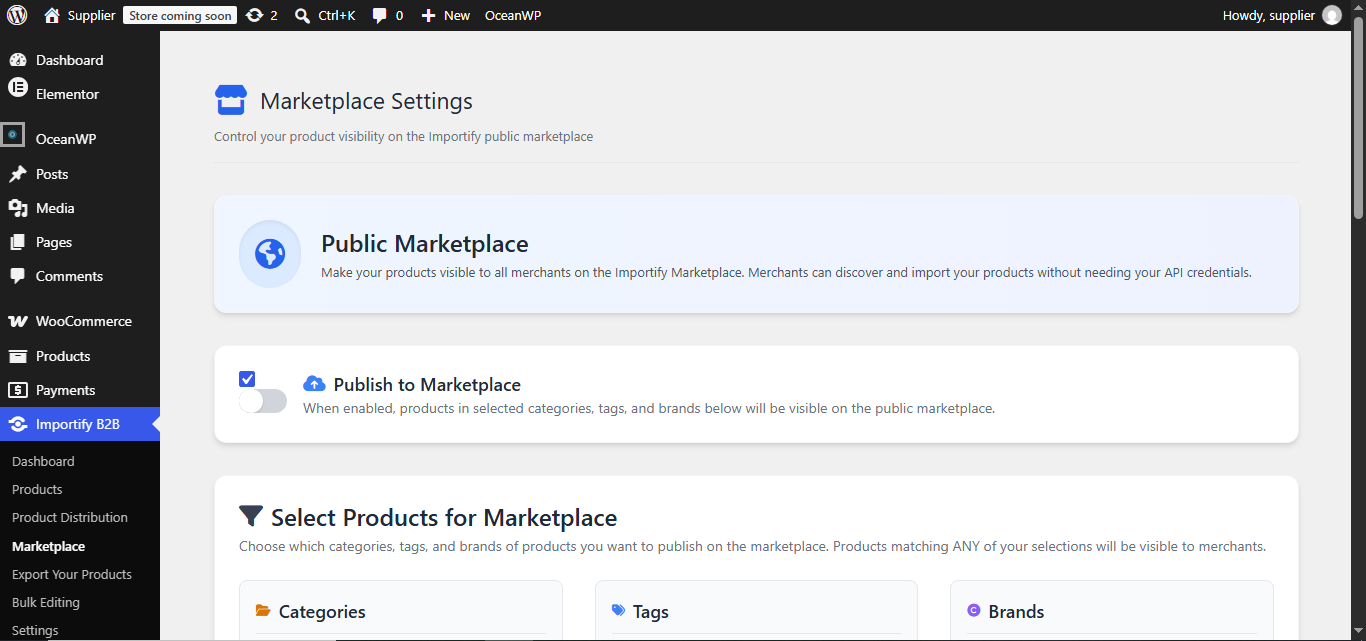
The Importify Marketplace gives you another channel for making your products discoverable to potential customers and B2B merchants. It can help expand your product reach without requiring you to rely solely on your own marketing efforts.
- Navigate to the Marketplace page in the Importify Supplier plugin in your WordPress admin dashboard.
- Enable the Importify Marketplace using the available settings.
- Select the product categories, tags, and brands you want to make available through the marketplace.
- Save your settings if required.
Once configured, eligible products can become discoverable through the Importify Marketplace, helping more merchants find products to import and potentially resell.
7. Share Your Supplier Details with B2B Merchants
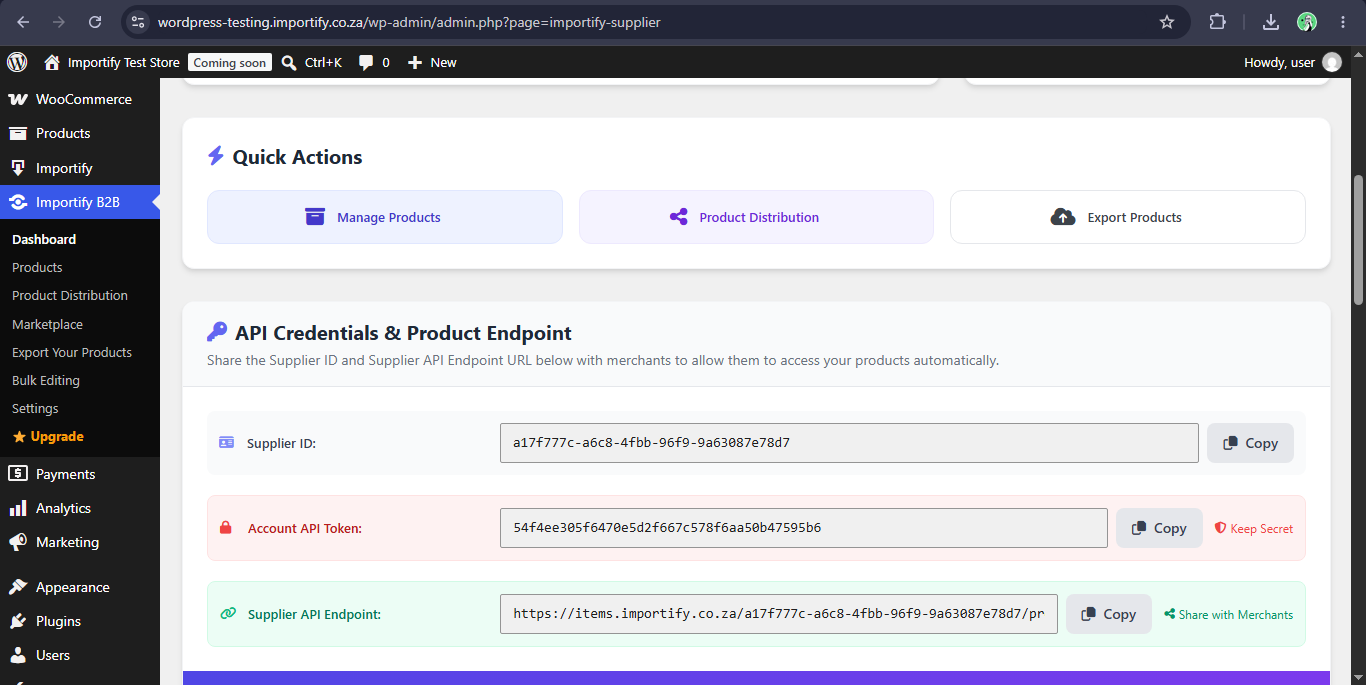
To allow a B2B merchant to connect to your supplier catalog and import your products, you need to provide them with your Supplier ID and Supplier API Endpoint.
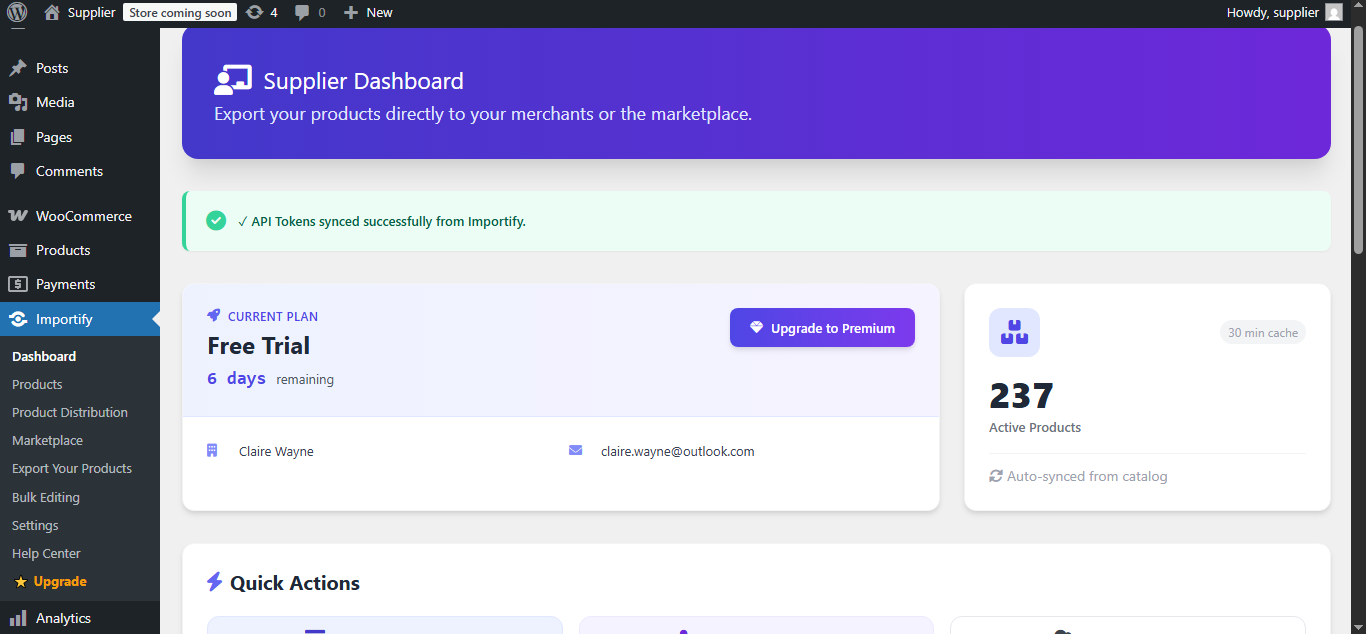
- Navigate to the Dashboard page in the Importify Supplier plugin in your WordPress admin dashboard.
- Locate your Supplier ID and Supplier API Endpoint.
- Copy both details and share them with the B2B merchant who wants to connect to your store.
- You can also find the Supplier ID and Supplier API Endpoint in your account dashboard here; https://importify.co.za/account/
Security notice: Only share your Supplier ID and Supplier API Endpoint with the merchants you want to connect to your catalog. Never share your Account API Key. Your Account API Key is intended for connecting your own WordPress store to Importify and should be kept confidential.
You're Ready to Get Started with Importify!
You have now covered the essential steps for setting up Importify as a supplier, connecting your WordPress store, syncing products, enabling automated product distribution, and making your catalog available to B2B merchants and the Importify Marketplace.
To get the most out of Importify, keep your product information, pricing, and stock levels up to date so merchants can work with accurate catalog data.
If you need further assistance, please contact the Importify support team.