Welcome to Importify! This guide will walk you through the process of setting up your merchant account and connecting your WordPress store. You will learn how to install the ProductSync Merchant for Importify plugin, link it to your account using an API key, and effortlessly import products from B2B suppliers.
1. Register for an Account
To begin, you must create an Importify account to activate the ProductSync Merchant plugin in your WordPress store. You can register here: https://importify.co.za/register
- Visit the registration page to create your account.
- Fill in the required details and verify your email address.
- Important: Ensure you use the correct Shop URL for your online store. Using an incorrect URL will lead to product import failures.
2. Retrieve Your Account API Key
Once your account is created and your email is verified, you will be directed to your account page. Here, you can find your Account API Key, which is required to connect your WordPress store to Importify.
Access your API key here: https://importify.co.za/account
Your API key will look similar to this: 0d6efdf226fd3bfd9b882037622a4fd612d39e2d. Copy this key; you will need to paste it into your WordPress plugin settings in the next step.
3. Connect Your WordPress Store with Importify
Now, install the ProductSync Merchant for Importify plugin on your WordPress site.
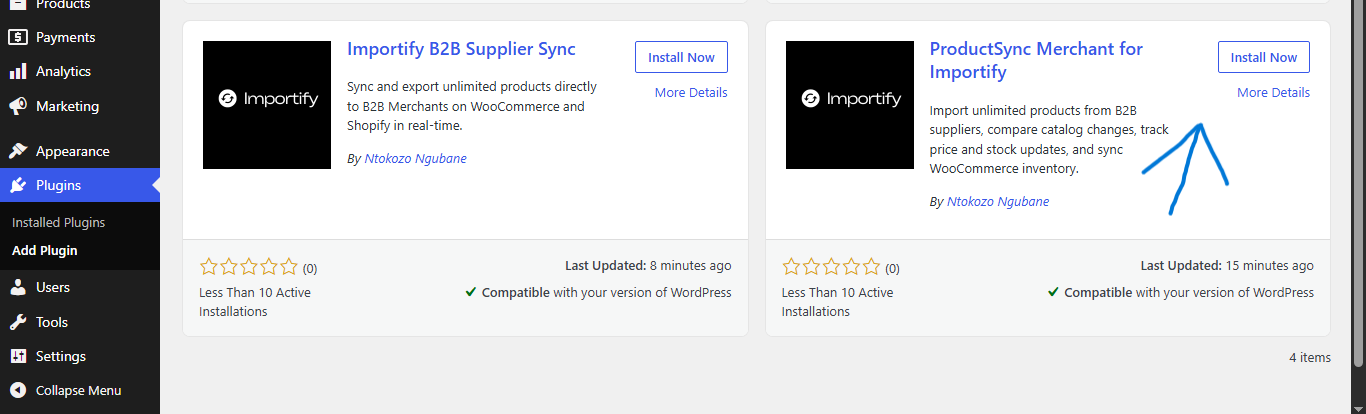
- Navigate to your WordPress Admin dashboard → Plugins → Add New.
- Search for "ProductSync Merchant for Importify", then click Install Now and Activate.
- Alternatively, you can download it directly from the WordPress Plugin Directory.
After activation, go to the plugin's Settings page, paste your Account API Key, and click Save.
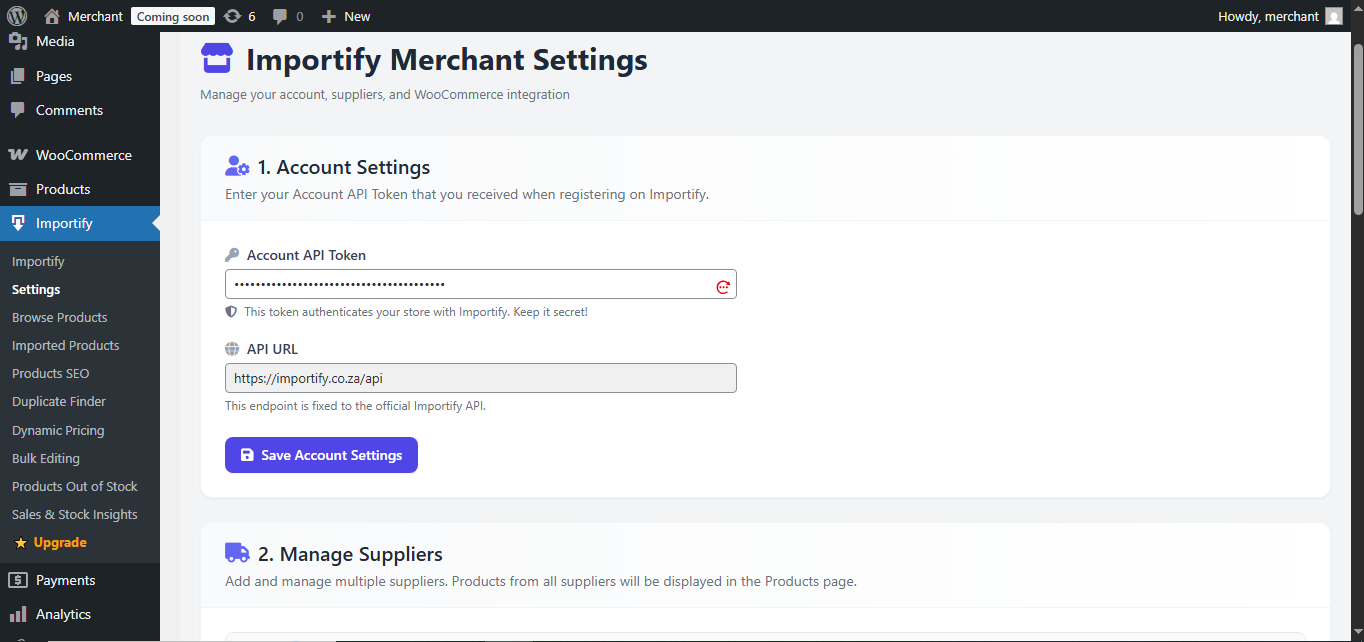
4. Install the WooCommerce Legacy REST API
To ensure compatibility between Importify and WooCommerce, you must install the Legacy REST API plugin.
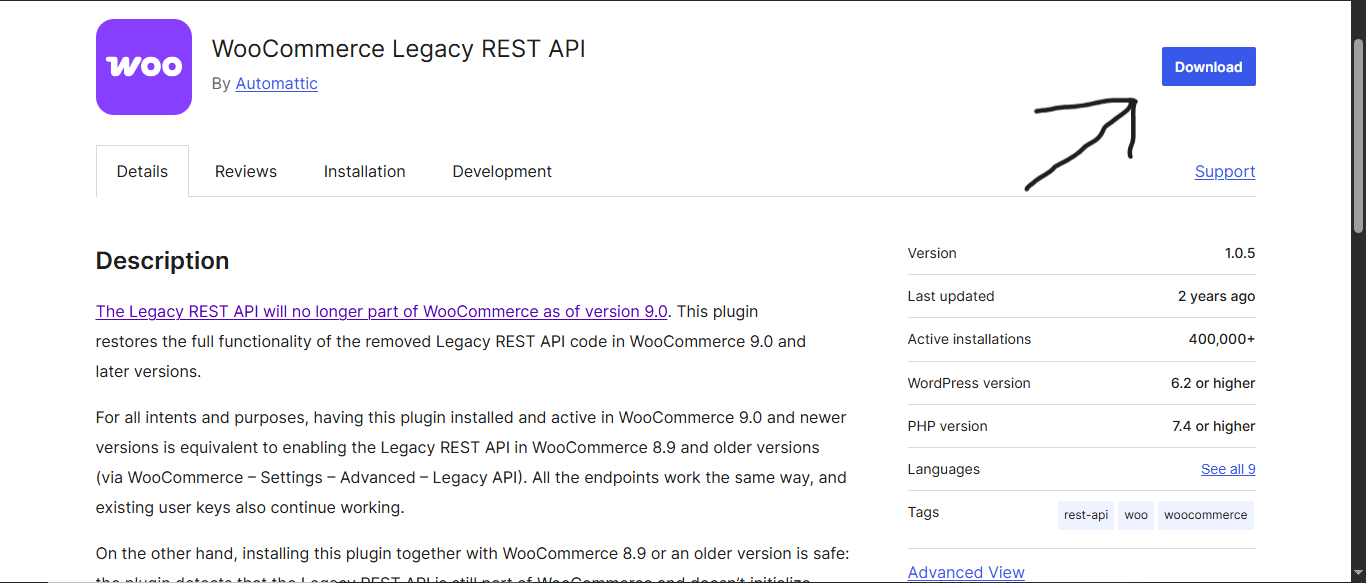
- In your WordPress Admin, go to Plugins → Add New.
- Search for "WooCommerce Legacy Rest API Plugin", then install and activate it.
- You can also find it here: WooCommerce Legacy REST API.
5. Enable WordPress Post Storage (Legacy)
This is a critical step. For Importify to automatically import products, you must enable the legacy storage feature.
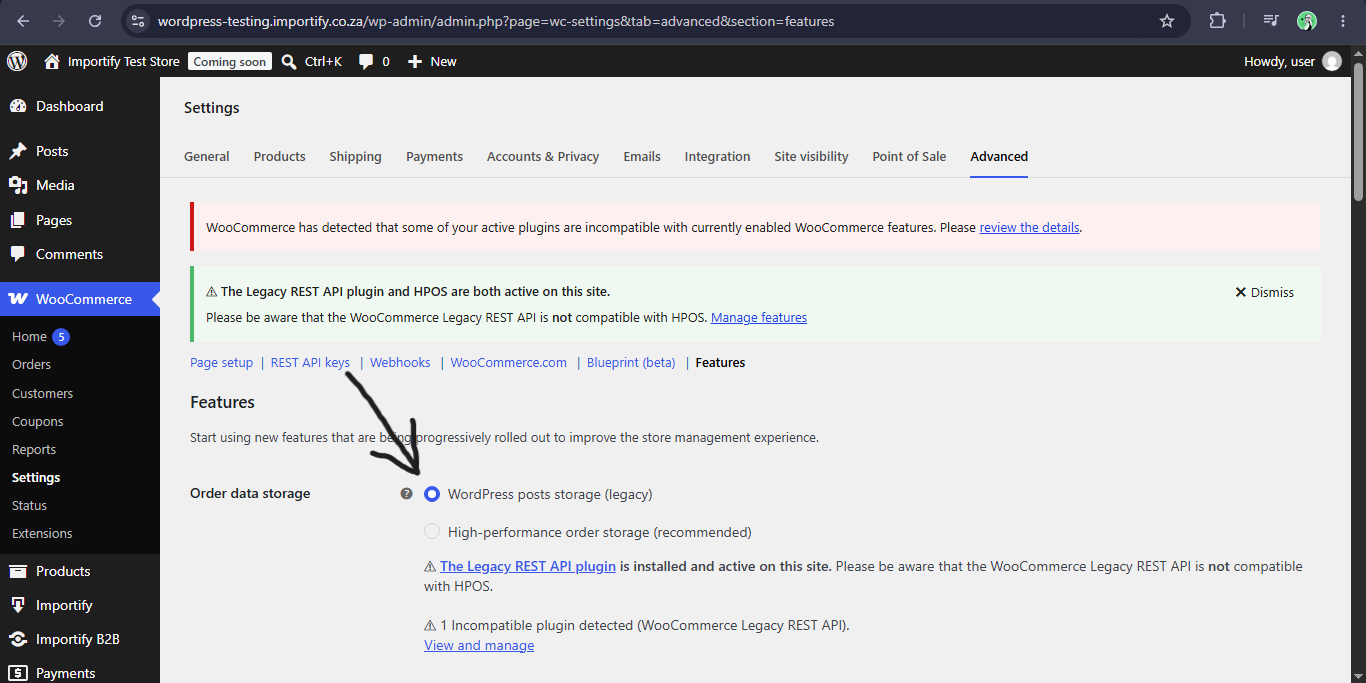
- Navigate to WooCommerce → Settings → Advanced.
- Click on the Features tab.
- Check the box for "WordPress Post Storage (Legacy)".
- Note: If this is not enabled, the Legacy REST API will not function, and product imports will fail.
6. Generate WooCommerce REST API Keys
Now, generate the keys that allow Importify to communicate specifically with your WooCommerce product database.
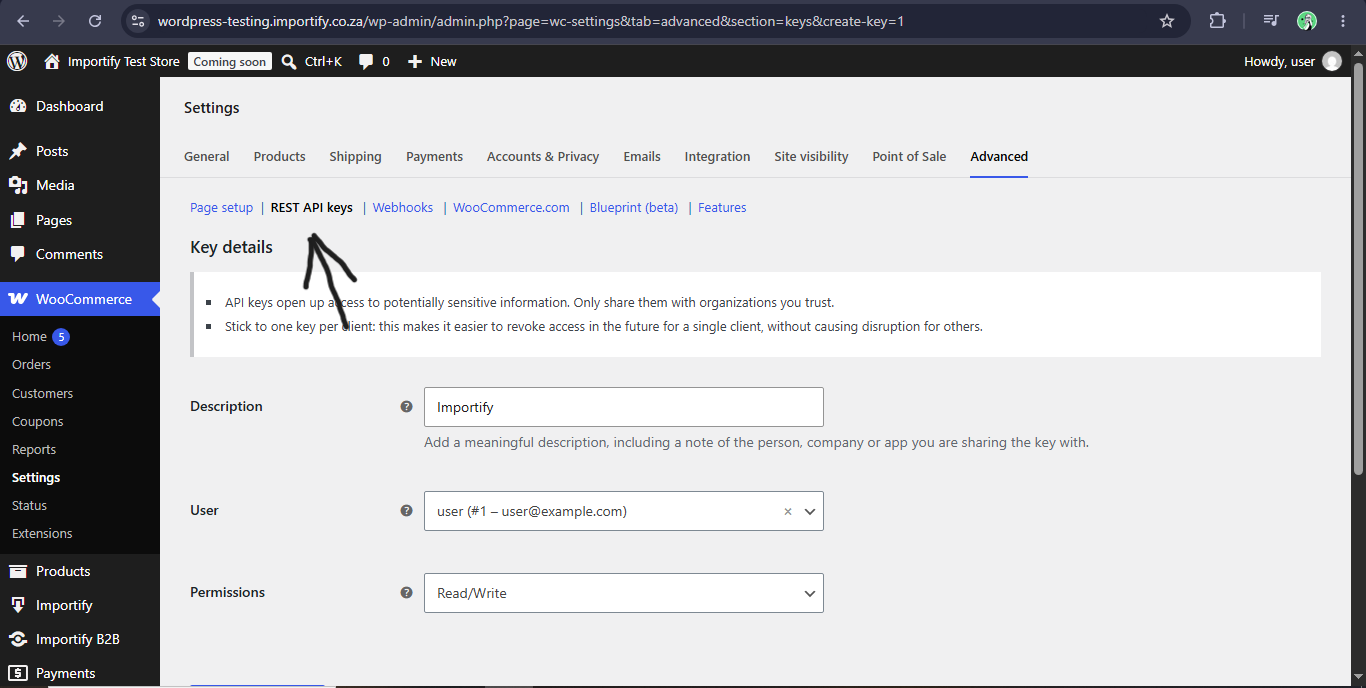
- In WooCommerce Settings → Advanced, click the REST API tab.
- Click Add Key.
- Enter a description (e.g., "Importify Merchant").
- Set the permissions to Read/Write.
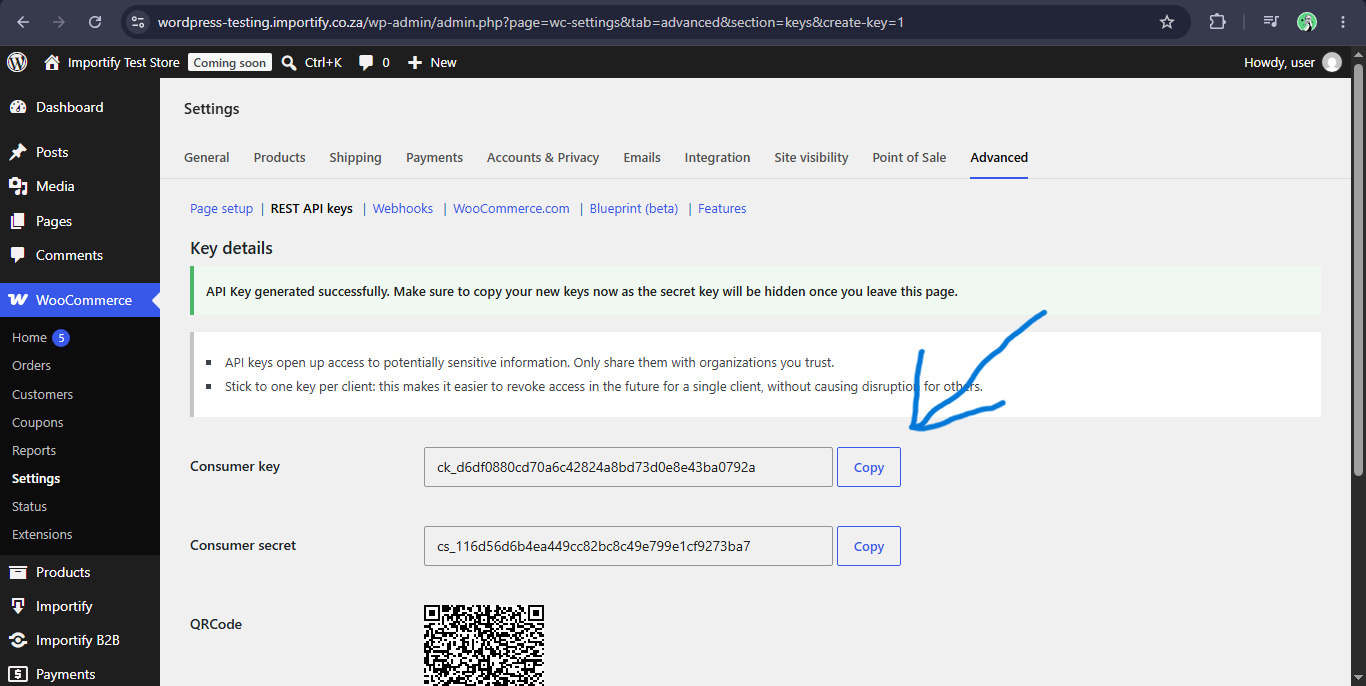
- Click Generate API Key.
7. Paste WooCommerce API Keys into Importify Settings
Copy the Consumer Key and Consumer Secret from the step above and add them to the Importify plugin settings.
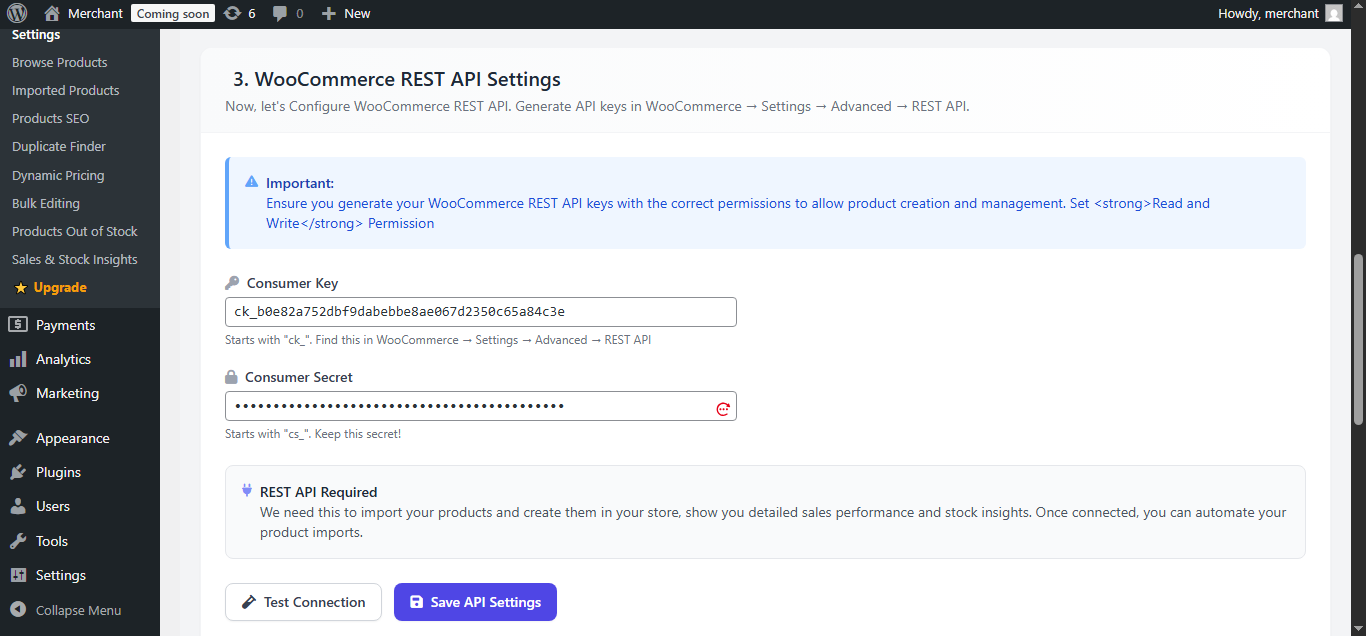
- Navigate to the Importify Settings page.
- Paste the Consumer Key and Consumer Secret into their respective fields and click Save.
You are now fully connected! You can now add suppliers or browse the Importify Marketplace.
8. Connect a B2B Supplier
To import products from a specific B2B provider, you will need a Supplier ID and a Supplier API Endpoint, which can be provided by your supplier.
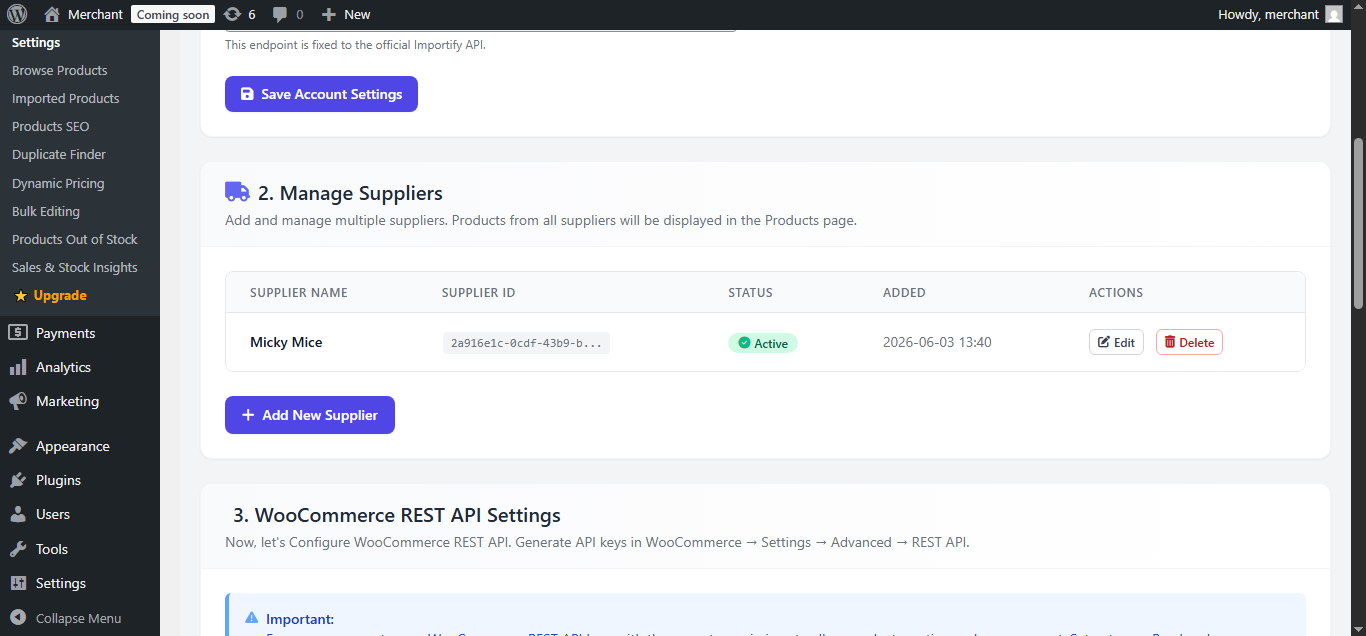
Example Credentials:
Supplier ID: a17f777c-a6c8-4fbb-96f9-9a63087e78d7
Supplier API Endpoint: https://items.importify.co.za/a17f777c-a6c8-4fbb-96f9-9a63087e78d7/products.json
- Go to Importify Settings → Add New Supplier.
- Paste the Supplier ID and API Endpoint and click Save.
- Once saved, navigate to the Products page to start browsing and importing.
9. Browse and Import Products
With your supplier connected, you can now import unlimited products on demand. Importify provides several powerful tools to optimize your catalog:
- Unlimited Imports: Bring in as many products as your store requires.
- Custom Markups: Automatically add a markup or discount to the original supplier price.
- Bulk Stock Editing: Adjust supplier stock levels in bulk before or after importing.
- SEO-Ready Products: Import products that are already optimized for search engines.
- Free Image CDN: We use a dedicated CDN for product images to ensure your site remains fast and responsive.
- Flexible Publishing: Set products to "Draft" for review or "Publish" them immediately.
Feature Overviews
Browsing Products
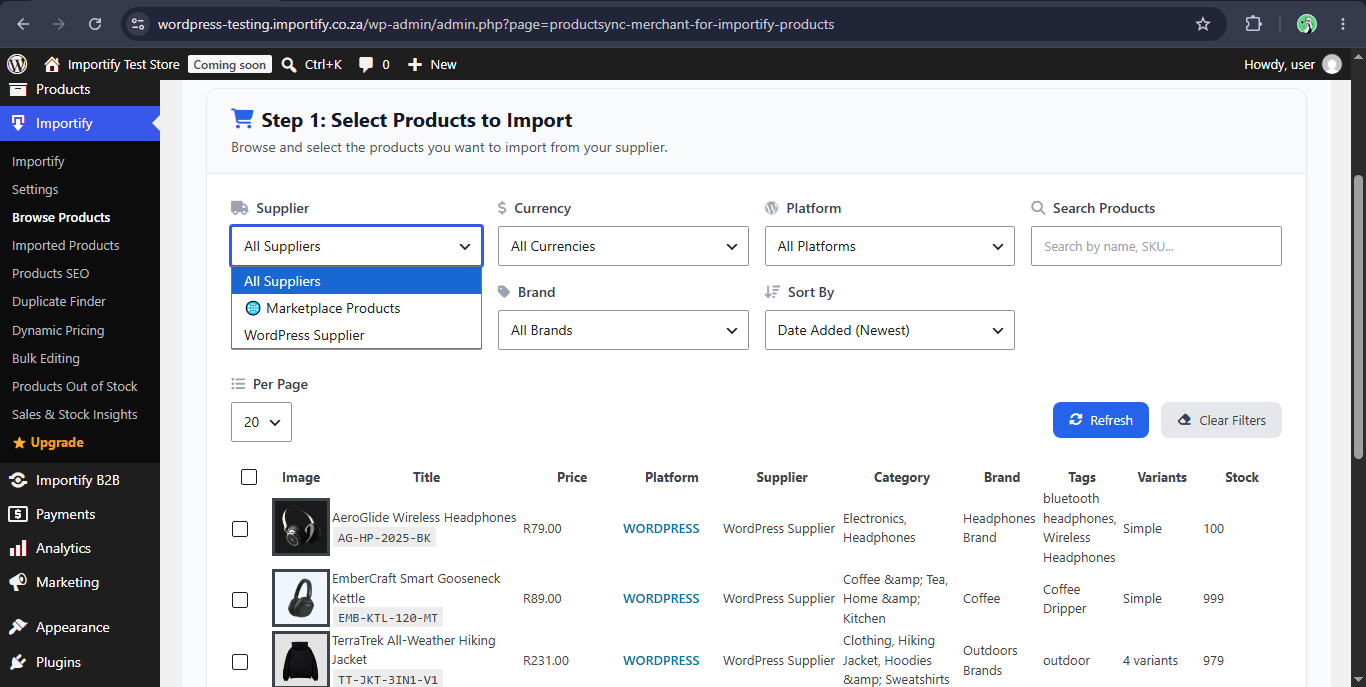
Easily search for products and filter your results by Supplier, Currency, and Category.
Adding Markups
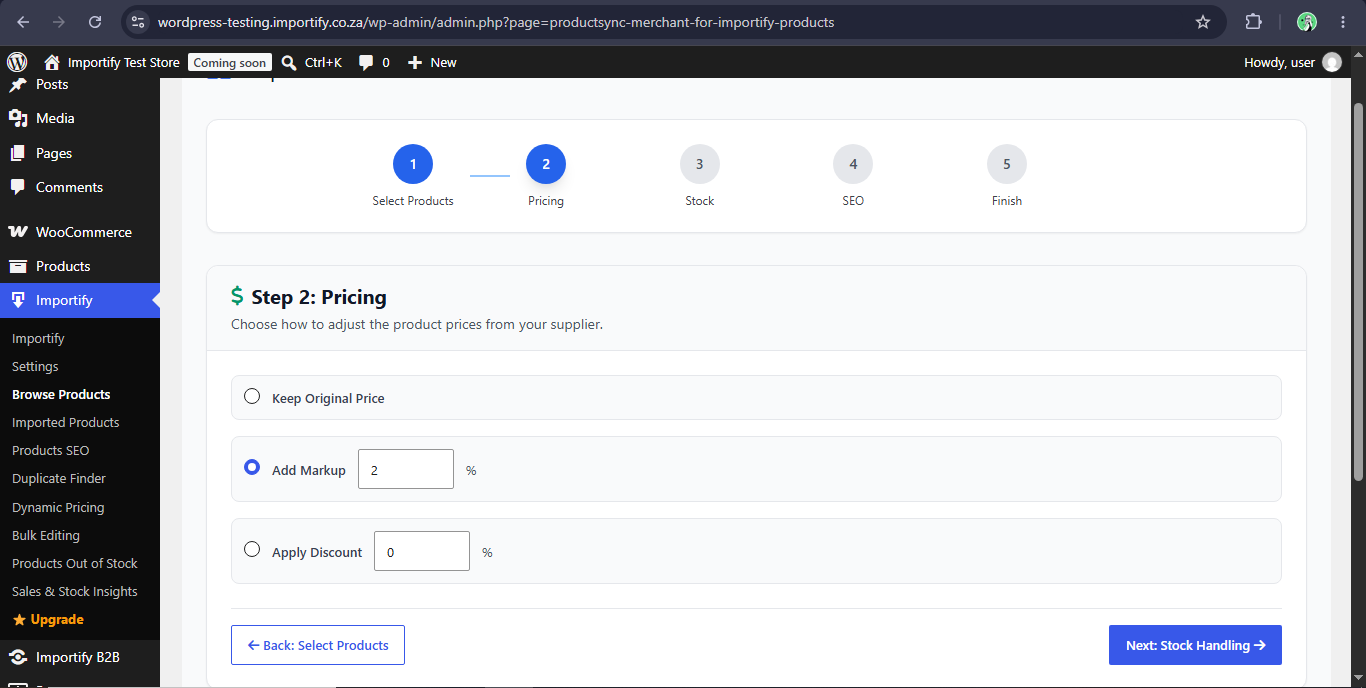
Apply markups or discounts to your products during the import process to manage your profit margins effortlessly.
Bulk Editing Stock
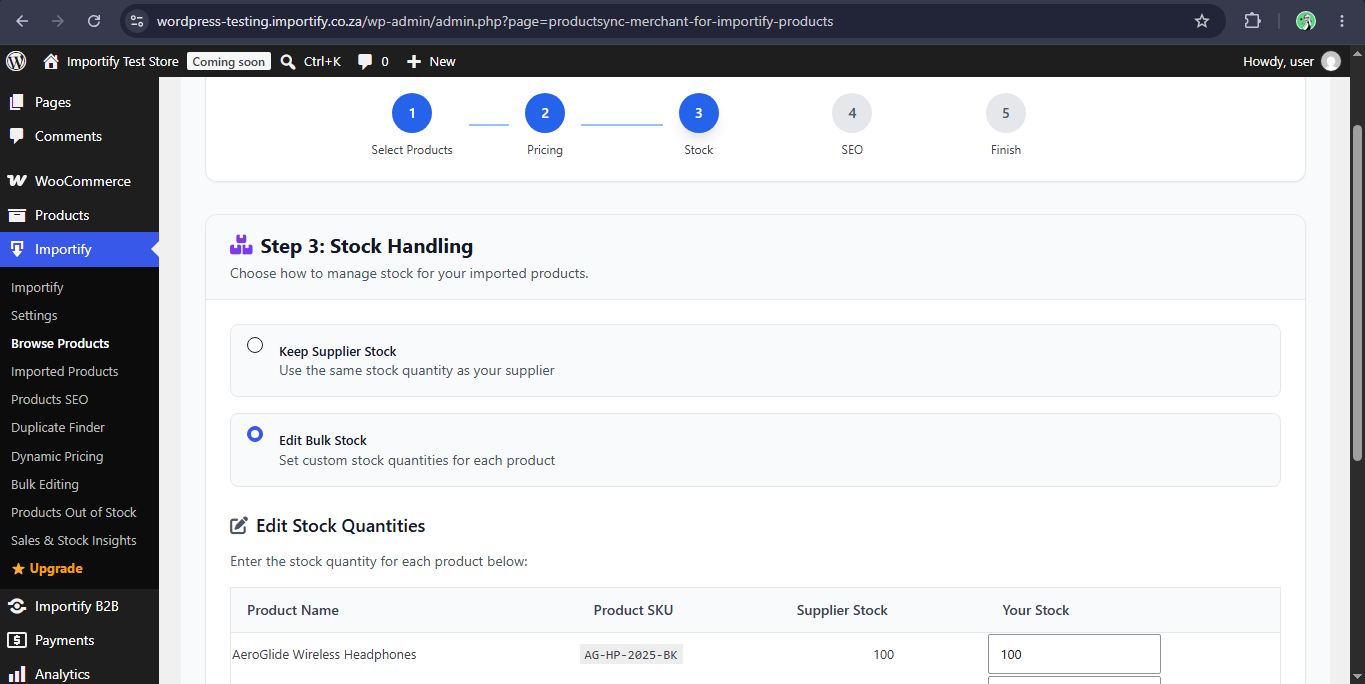
If your available stock differs from the supplier's, use the bulk edit tool during import to ensure accuracy.
Enabling SEO
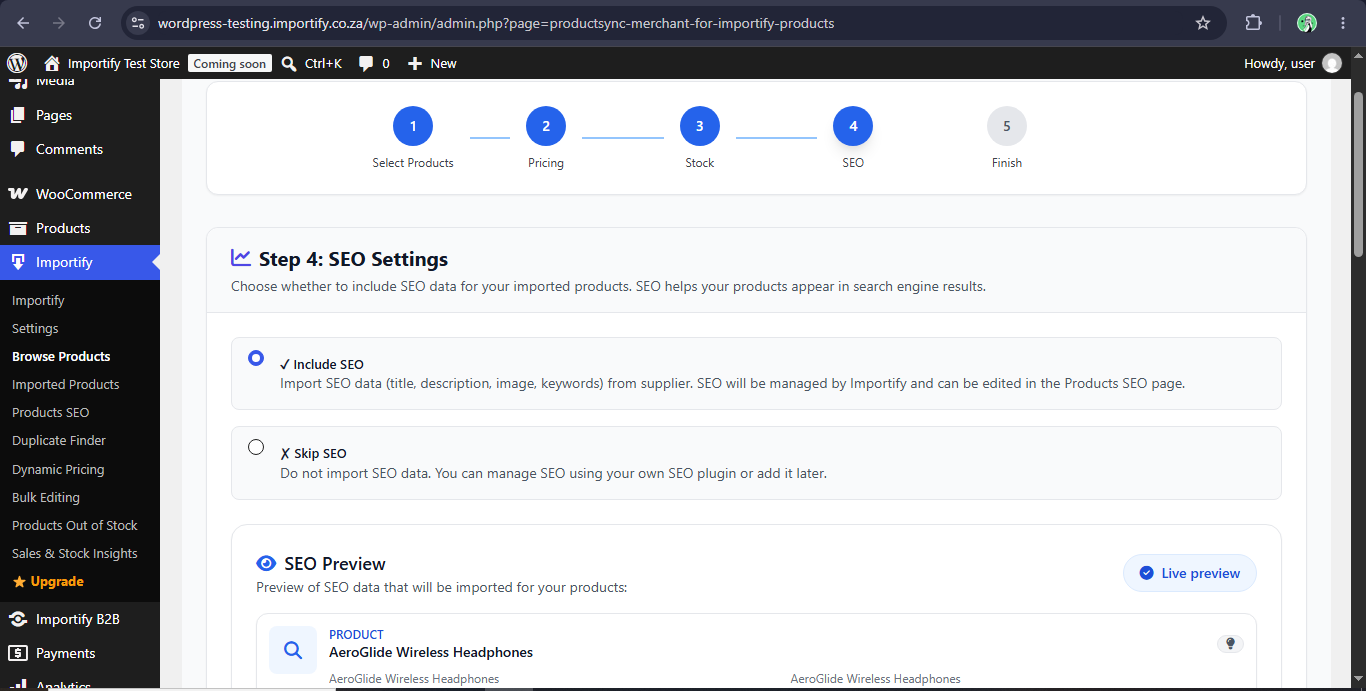
Toggle the SEO option to import products that come pre-optimized for better search engine visibility.
Publishing Options
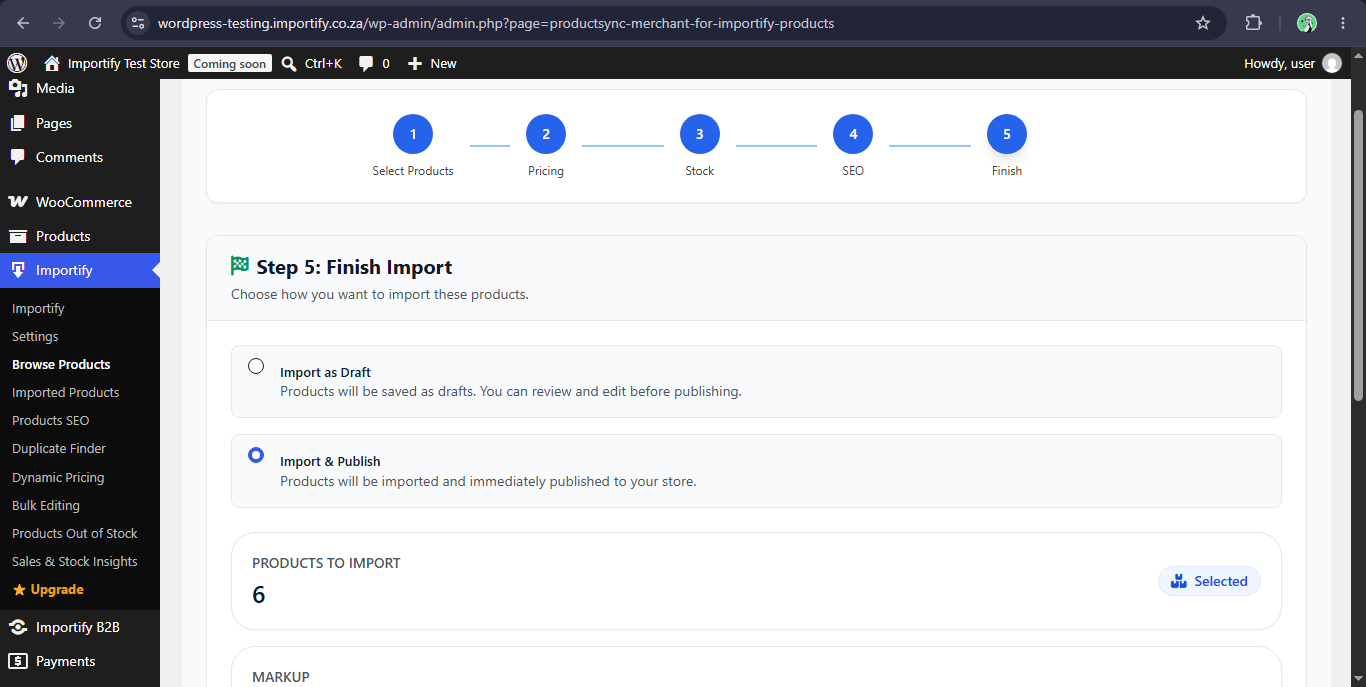
Choose whether to publish your products live immediately or save them as drafts for final edits.
Need Help?
If you run into any issues or have questions, our support team is here to help. You can contact us or submit a support ticket, and we will get back to you as soon as possible.